PXF File Embroidery for Pulse Software Users
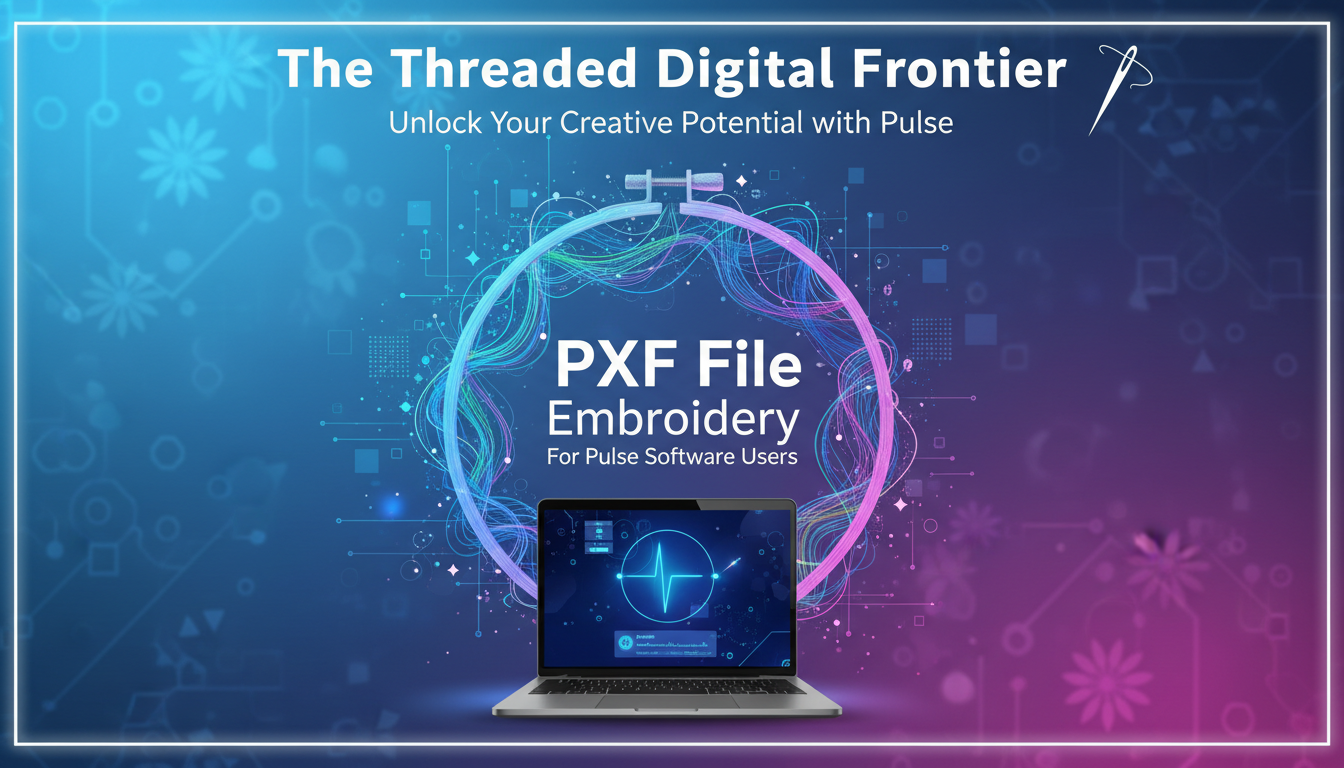
You’re a Pulse Microsystems software user. You’ve built a library of designs and projects within your creative ecosystem. Then, you download a new design from a favorite digitizer, and the file you get is a .PXF. Your Pulse software might not recognize it, leaving you confused. This is a common point of friction for users of Pulse, Embrilliance, and other platforms built on the same core technology. Understanding PXF File Embroidery is key to resolving this and unlocking seamless design sharing within this specific software community. A PXF isn’t a mistake; it’s a specific type of project file that carries more data than a simple stitch file, designed to make your life easier—if you know how to use it.
Think of a PXF file as a "Pulse Exchange Format." It’s a container designed to move a complete embroidery project, with all its colors, sequences, and settings, from one instance of compatible software to another. For users within the Pulse/Embrilliance/BuzzTools ecosystem, it’s a powerful way to share rich design data. This guide will explain exactly what a PXF is, how it differs from the files you stitch with, and the straightforward steps to open, utilize, and convert it within your software workflow.
What Exactly is a PXF File in the Pulse World?
Let's define it clearly. PXF stands for Pulse eXchange Format. It is a proprietary project file format used primarily within the software family that originated with Pulse Microsystems, including various versions of Embrilliance and related platforms.
The most critical thing to know is this: You cannot stitch a PXF file directly on your embroidery machine.
A PXF is not a stitch file (.PES, .DST, .JEF). Instead, it is a project bundle or workspace file. It contains:
-
The Embroidery Stitch Data: The core design, often embedded in a neutral format.
-
The Complete Thread Chart: The exact brand and color numbers (like Isacord, Madeira) intended by the designer.
-
Design Layout Information: Any placement, grouping, or sequencing done by the creator.
-
Software-Specific Settings: Information that allows the design to open in a ready-to-edit state.
Its purpose is to be opened in compatible software (like Embrilliance), where you can see the true colors, make edits, and then export a machine stitch file. It’s the digital equivalent of a designer sending you their complete project folder, not just the final exported image.
PXF vs. Other Formats: A Pulse User’s Comparison
-
.PXF (Pulse Exchange Format): The Project File. Used for editing and sharing within compatible software. It’s your working document.
-
.PES / .DST / .JEF / .EXP: Stitch Files. Used for sewing. These are the final, compiled instructions for your specific embroidery machine. You generate these from the PXF project.
-
.BE (Embrilliance): Another native project format for the Embrilliance platform, similar in function to PXF.
Analogy: If you use Microsoft Word, the .PXF is like the .DOCX file you edit. The .PES is like the .PDF you print or send to someone else. You work on the .DOCX/.PXF, then create the .PDF/.PES for its final use.
Why Designers Distribute PXF Files to Pulse Users
When you buy a design from a digitizer who uses Pulse or Embrilliance software, they often provide a PXF for excellent reasons:
-
Preserves Color Accuracy: The PXF bundles the exact thread palette. When you open it, your software displays the correct Isacord #1245 or Madeira #1206, eliminating guesswork and ensuring your stitch-out matches the designer’s sample.
-
Enables Easy Customization: With the design open as a project, you can effortlessly recolor it to match your project. Change every red element to blue with a few clicks in the thread palette.
-
Maintains Design Integrity: It allows the designer to send you the design in its intended state, with optimized stitch sequences and object grouping, ready for you to adapt rather than reverse-engineer.
Your Step-by-Step Guide to Using a PXF File
Step 1: Open the PXF in Your Compatible Software
You need software that reads the Pulse format. Your primary option is Embrilliance (any platform level that supports opening files).
-
Launch your Embrilliance software (e.g., Embrilliance Essentials, Embrilliance Enthusiast, etc.).
-
Go to File > Open.
-
Navigate to your downloaded .PXF file and select it. The design will load onto the virtual mat.
Step 2: Explore and Utilize the Project Data
Once open, take advantage of the embedded information:
-
View the True Thread Palette: Look for the color chart or thread list. This is your guide for pulling physical threads. This is a major benefit lost if you only had a .PES.
-
Inspect the Design: See how elements are grouped and sequenced in the object list or layer panel.
-
Customize (Optional): This is where the PXF shines. Want different colors?
-
Click on the thread color in the palette list.
-
Choose “Select Thread” or a similar option to open the software’s thread library.
-
Pick a new color. The entire design will update globally.
-
Step 3: Convert the PXF to a Machine Stitch File
Now, you need to “export” or “save as” a format your machine reads.
-
In Embrilliance, go to File > Save As.
-
In the dialog box, you will see a “Save as type” or “Format” dropdown menu.
-
This is the crucial step. Click the dropdown and select your embroidery machine’s native format.
-
For Brother/Babylock/Pfaff: Choose .PES
-
For Janome/Elna: Choose .JEF
-
For Bernina (older): Choose .ART
-
For Bernina (newer): Choose .VIP
-
For Husqvarna Viking: Choose .HUS
-
For commercial machines: Choose .DST
-
-
Name your file and save it directly to your USB drive.
What Happened? Your software took all the project data from the PXF—stitches, your new colors, the sequence—and compiled it into a pure, machine-readable stitch file (.PES, .DST, etc.). The original PXF remains untouched as your master project file.
Step 4: Stitch as Usual
-
Eject the USB from your computer and plug it into your embroidery machine.
-
On your machine’s screen, navigate to and select the .PES file (or whichever format you created). You will not see the .PXF file listed.
-
Hoop your fabric, thread using the color chart from the PXF, and stitch.
What If You Don't Have Embrilliance Software?
This is a common hurdle. You have a PXF but no Pulse-based software to open it. Here are your options:
-
Contact the Seller First: Many designers who sell PXF files automatically include multiple machine formats (.PES, .DST, .EXP) in the download ZIP folder. Check carefully before taking further action. If not, a polite email can often get you the specific format you need.
-
Use Embrilliance Express (Free): Download the free Embrilliance Express software. While limited, it can often open PXF files and allow you to Save As a limited selection of machine formats. It is the official, safe tool for this specific purpose.
-
Avoid Generic Online Converters: Standard “embroidery file converters” found via Google often fail to process PXF files correctly because they are not simple stitch files. They may output corrupt or unstitchable data.
Advantages for the Pulse Ecosystem User
As someone in this software ecosystem, PXF files offer you distinct benefits:
-
Workflow Efficiency: You can buy a design and have it open in your editing software instantly, ready to merge with other designs or personalize.
-
Community Compatibility: Sharing your own creations with other Embrilliance users is seamless—send the PXF, and they get your full project vision.
-
Future-Proof Editing: You keep the editable project file. Six months from now, if you want to change the colors for a new project, you open the PXF and make the change, rather than starting from scratch or dealing with a locked .PES file.
Common Pitfalls and Troubleshooting
-
Pitfall: Trying to load the .PXF directly on the embroidery machine.
-
Solution: Always remember: PXF is for software, PES/DST is for the machine.
-
-
Pitfall: Software says it can’t open the file or it appears corrupt.
-
Solution: Ensure you are using a relatively current version of Embrilliance. Very old software may not support PXFs from newer versions. Try opening it in Embrilliance Express.
-
-
Pitfall: Colors look wrong after saving as .PES.
-
Solution: Double-check that you selected the correct thread colors in the PXF palette before exporting. The stitch file will contain the colors as you last set them in the project.
-
Conclusion: The PXF as Your Project Hub
For users within the Pulse and Embrilliance community, understanding PXF File Embroidery transforms it from a mystery file into a powerful asset. It is the format that respects the creative process, carrying the full intent of a design from creator to stitcher.
Embrace the workflow: Open the PXF in your software, customize if desired, export to your machine’s format, and stitch. By using the PXF as your editable project hub, you ensure color accuracy, unlock easy customization, and maintain a high-quality, flexible file for future use. Don’t let the .PXF extension intimidate you—see it as your gateway to a smoother, more professional embroidery process within your chosen software family.

