Interactive guide
Learn Petiht step by step
Accounts are created in the mobile app only. Download Petiht, sign up on your device, then use this tutorial to explore the feed, rewards, wallet, settings, and AI creation tools.
On iPhone or iPad? Tap the Apple badge to download Petiht from the App Store.
Scroll to begin the tour
-
01
Feed, tabs & main navigation
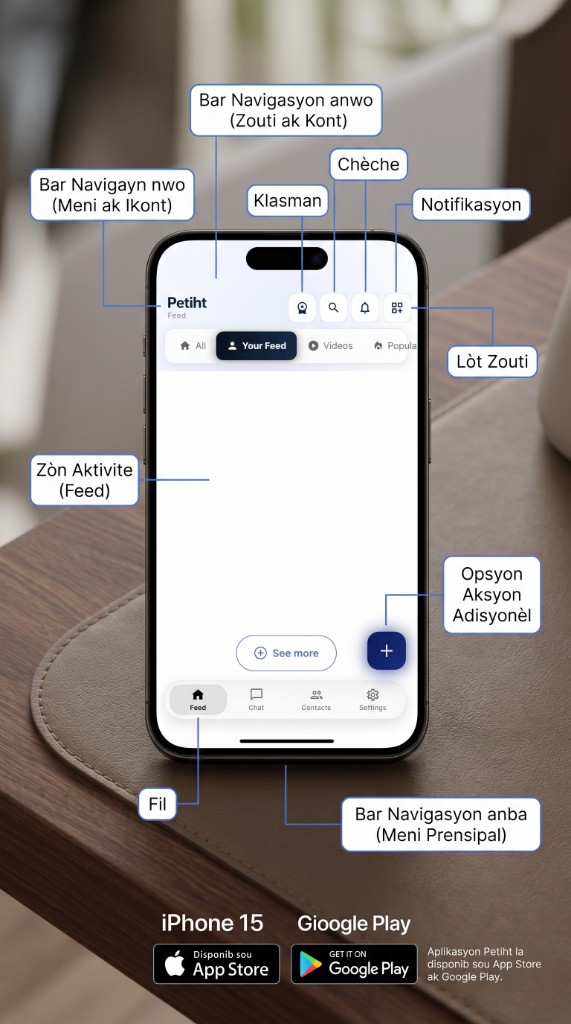
The home screen is built around discovery and quick actions.
- Top bar: leaderboard, search, notifications, and more tools.
- Filter chips: All, Your Feed, Videos, Popular — swipe to explore.
- The + button creates posts; bottom tabs jump to Feed, Chat, Contacts, and Settings.
-
02
Browse categories & your personalized feed
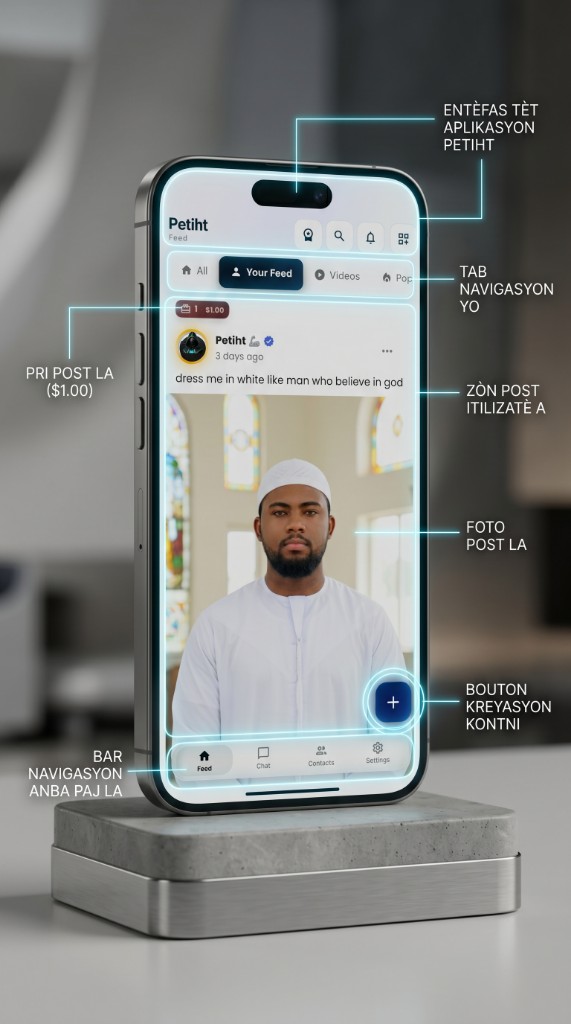
Switch contexts without losing your place.
- Horizontal tabs keep navigation one thumb away.
- Posts can include photos, video, and paid highlights.
- Load more when you reach the end of the feed.
-
03
Posts, captions & monetization badges
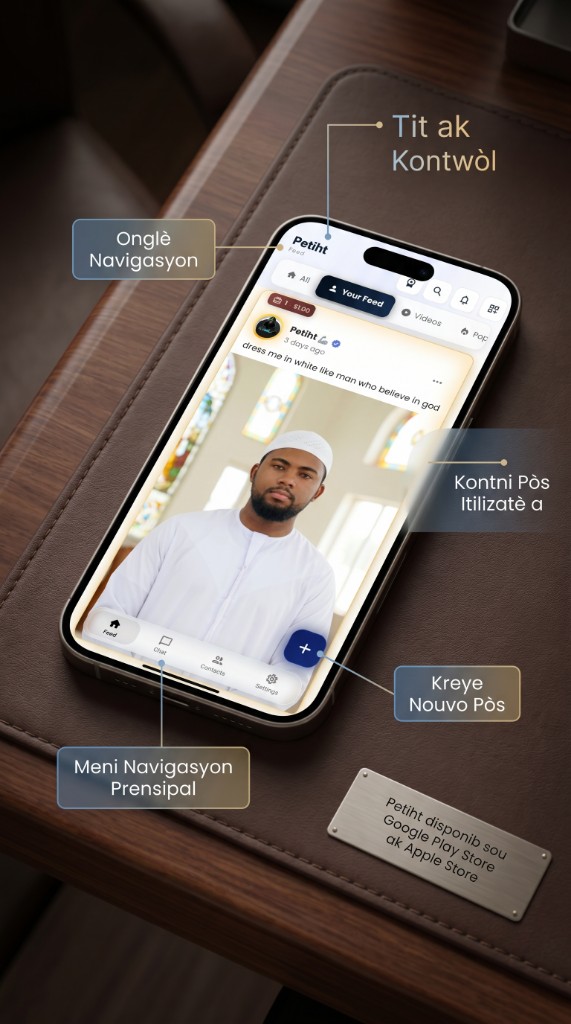
Creators control how content looks and when it is paid.
- Verified authors and timestamps build trust in the feed.
- Badges can show unlock prices on premium media.
- Floating create is always visible while you scroll.
-
04
VIP leaderboard & how you earn points
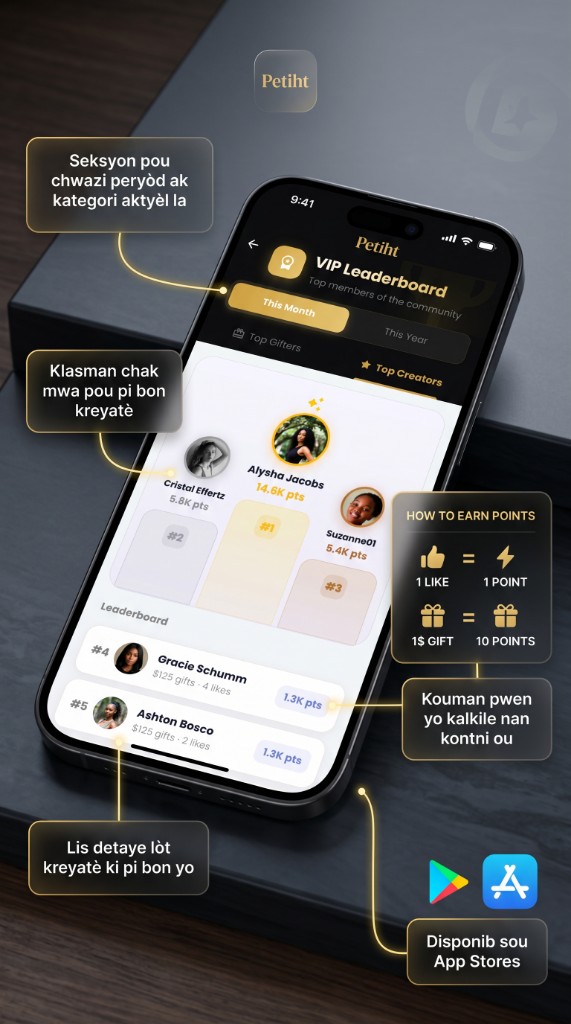
Recognition is transparent: filters, podium, and live math.
- Toggle This Month / This Year and Top Gifters / Top Creators.
- The podium showcases the top three; the list breaks down gifts, likes, and points.
- Typically 1 like = 1 point and each $1 in gifts = 10 points.
-
05
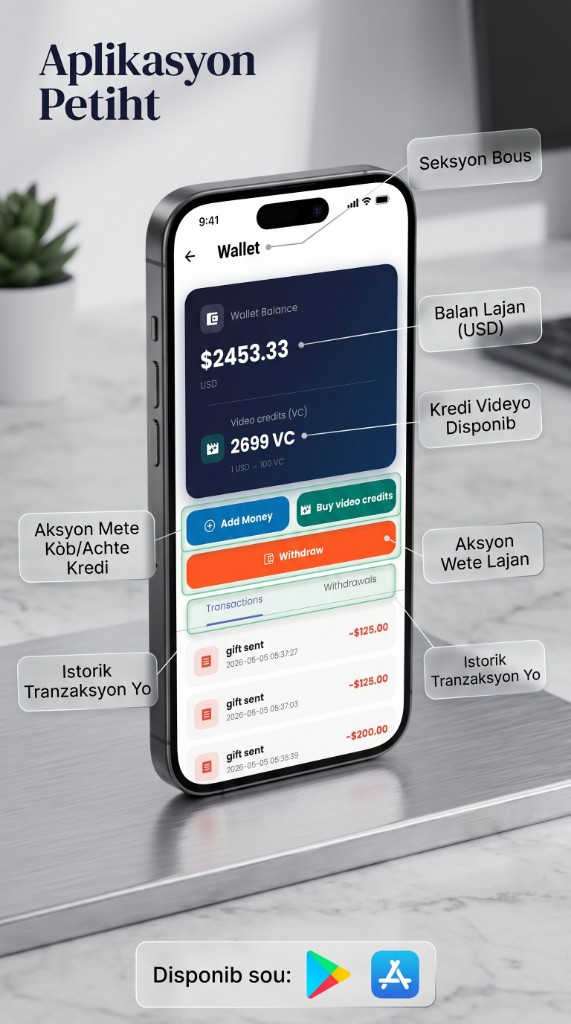
Wallet: balance, video credits & history
One place for money, VC, and recent movements.
- Review USD balance alongside video credits (VC) and conversion hints.
- Add funds, buy VC for AI video, or withdraw when eligible.
- Transactions list shows gifts sent and timestamps in real time.
-
06
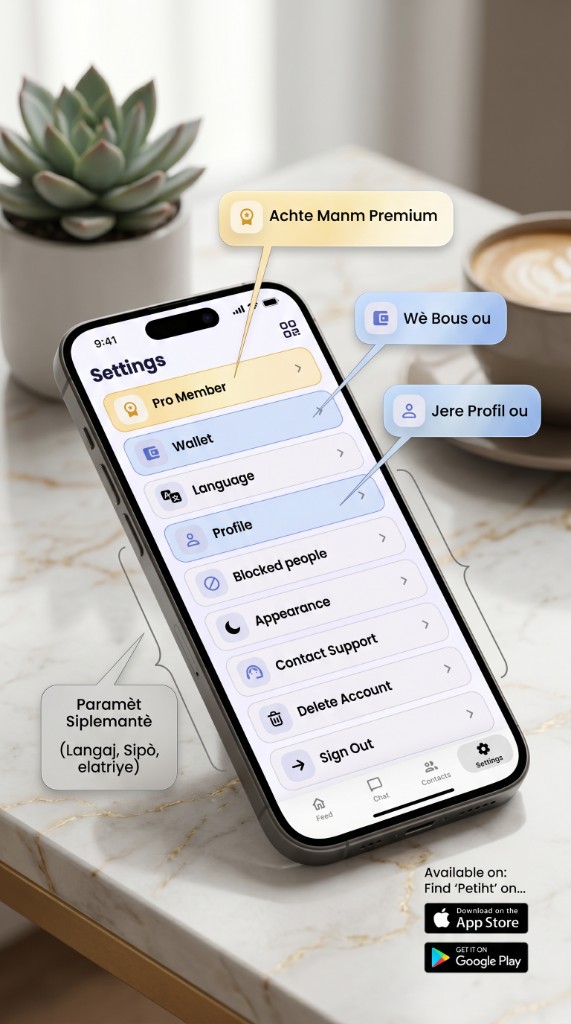
Settings: Pro, profile & preferences
Tune membership, security, and support.
- Upgrade to Pro, open your wallet, and edit profile details.
- Language, appearance, blocked users, and help live in one stack.
- Sign out safely when you switch devices.
-
07
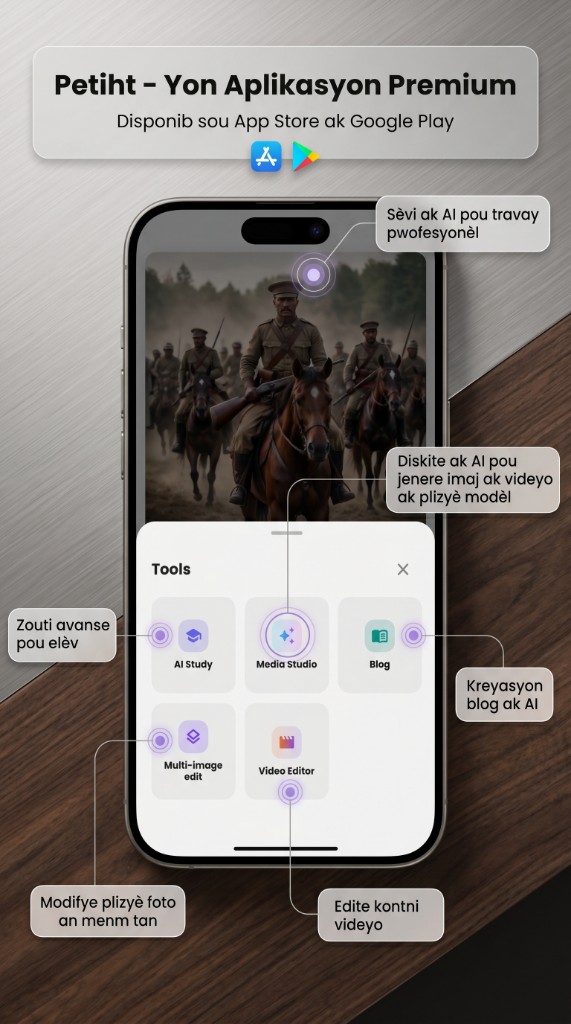
Professional tools hub
Launch advanced AI workflows from one premium panel.
- AI Study, Media Studio, Blogs, multi-image edits, and the video editor.
- Each tile opens a focused workflow with contextual tips.
- Great for students, creators, and teams who need depth.
-
08
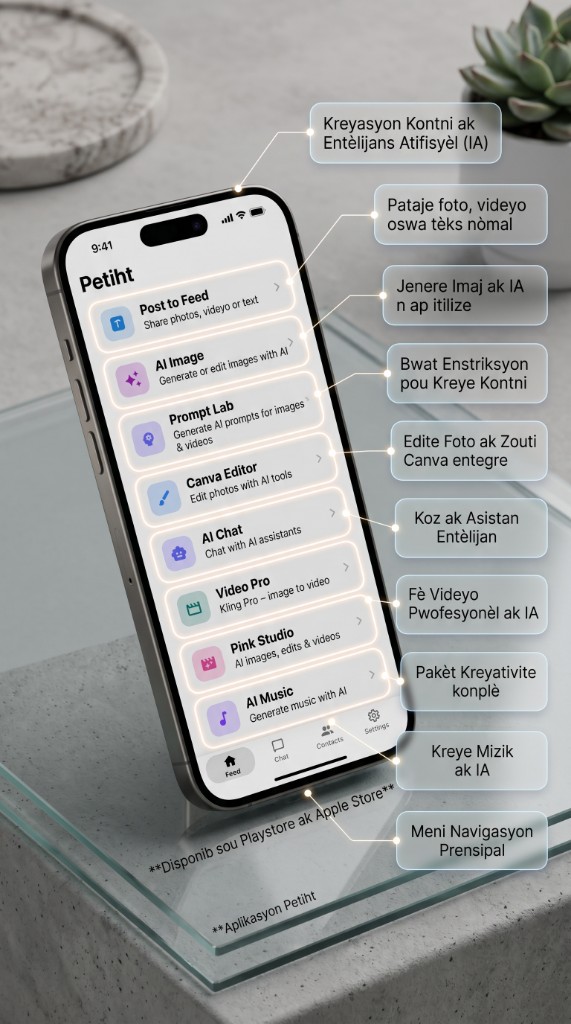
AI creation shortcuts
Your launchpad for every generator.
- Post to Feed, AI Image, Prompt Lab, Canva, AI Chat, Video Pro, Pink Studio, AI Music.
- Pick a card to jump straight into the right model.
- Bottom navigation stays visible for social features.
-
09
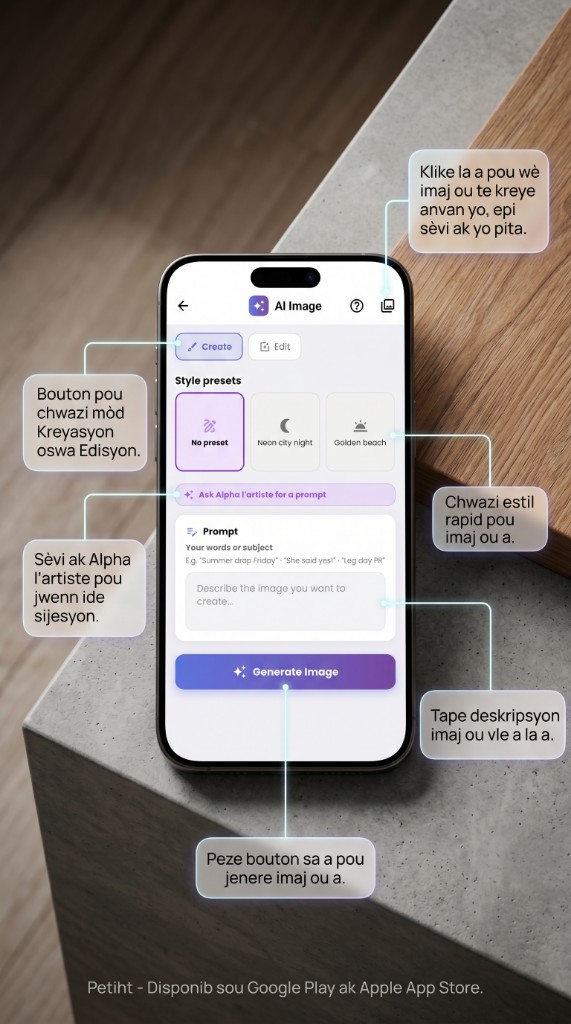
AI Image: modes, presets & prompts
Switch between Create and Edit, then steer the model precisely.
- Gallery icon revisits past renders for reuse.
- Style presets accelerate neon, golden hour, and cinematic looks.
- Ask Alpha for prompt help, type your subject, then Generate Image.
-
10
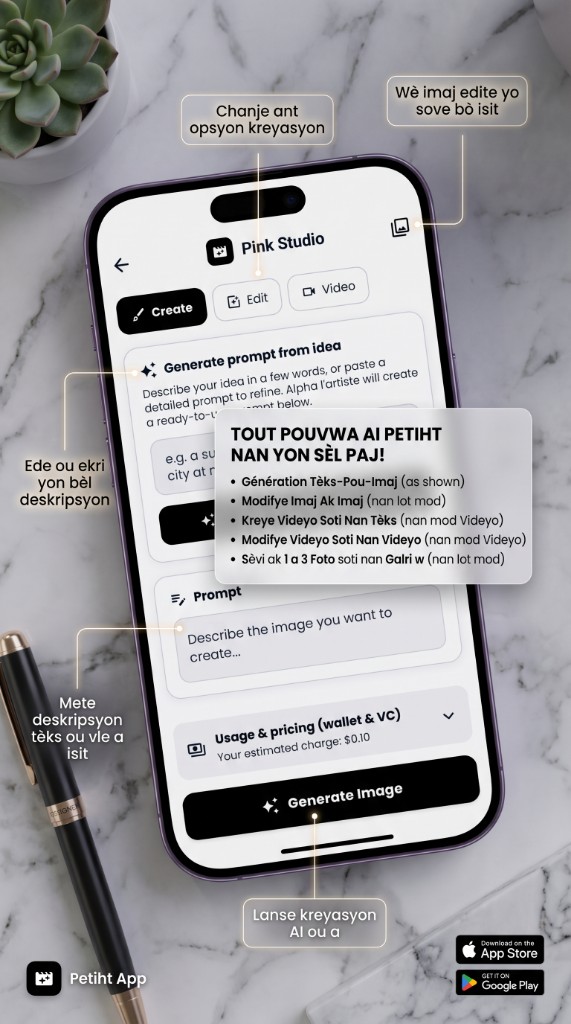
Pink Studio: create, edit & video
One screen for guided creativity with transparent pricing.
- Tabs switch between Create, Edit, and Video workflows.
- Generate prompts from a short idea, refine, and see estimated charges.
- Gallery keeps every render organized.
-
11
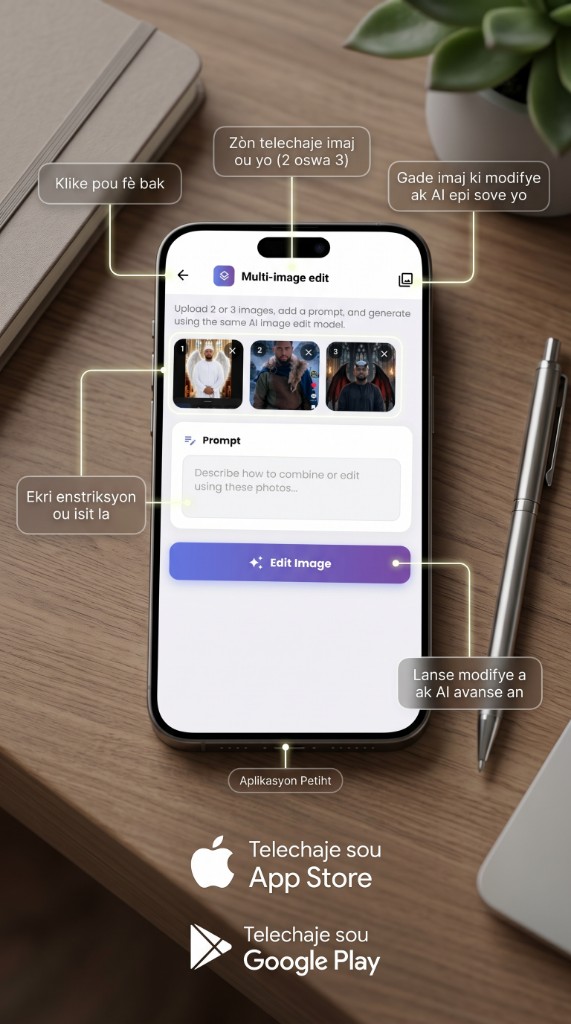
Multi-image edit
Blend two or three references with one instruction.
- Upload 2–3 photos, describe the merge, and preview in the gallery.
- Back arrow returns to your project; layers icon tracks assets.
- Tap Edit Image when the prompt feels ready.
-
12
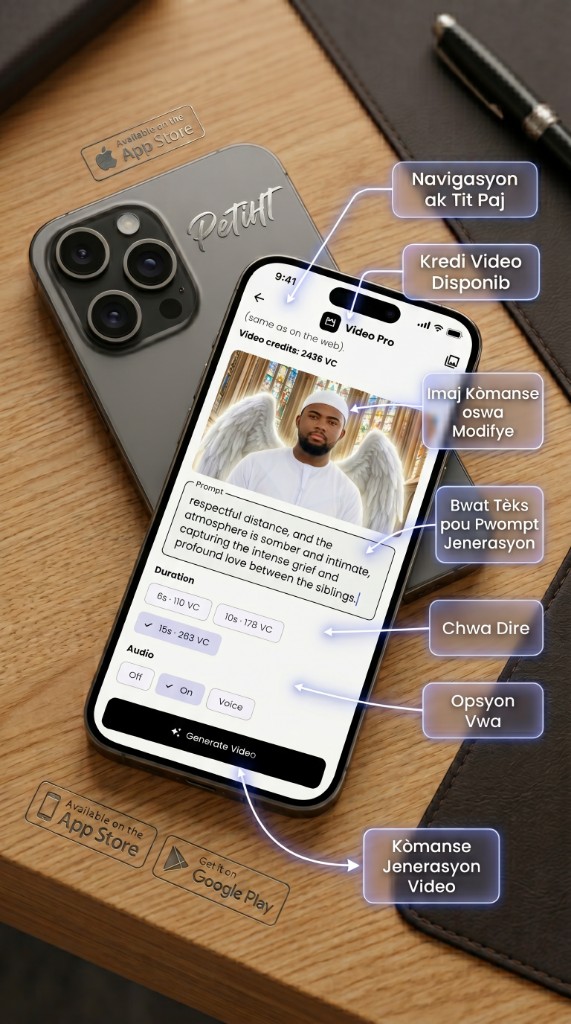
Video Pro: credits, duration & audio
Turn stills into motion with granular controls.
- Monitor remaining VC before you render.
- Pick clip length; balances cost vs. storytelling room.
- Toggle audio modes, polish the prompt, then Generate Video.
-
13
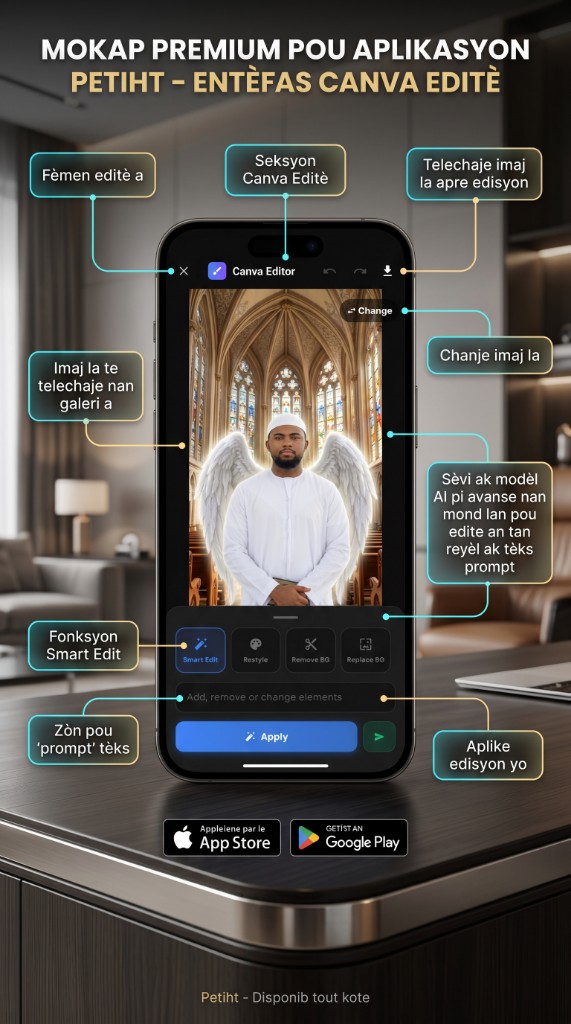
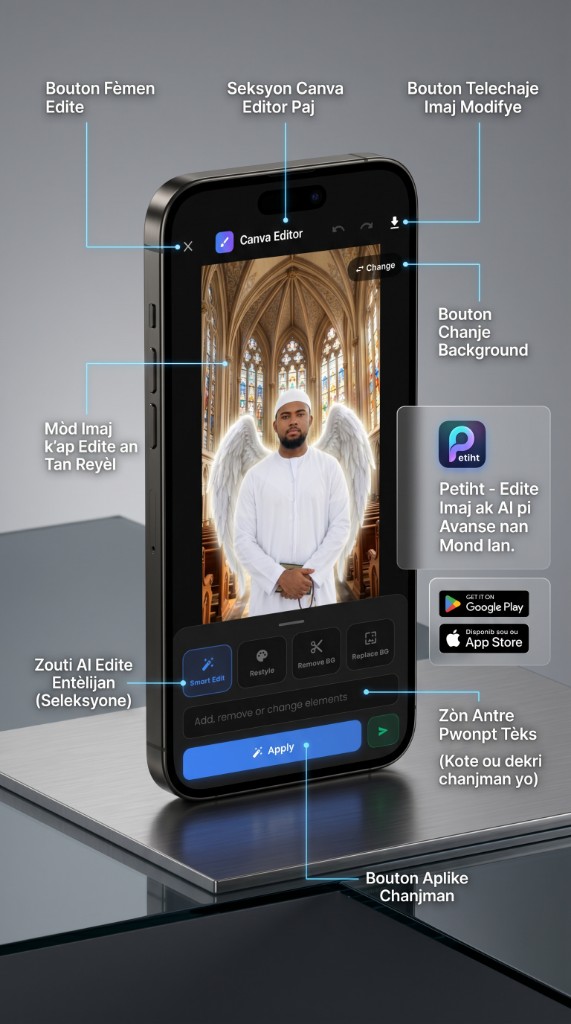
Canva Editor: smart tools & prompts
Realtime edits powered by advanced models.
- Smart Edit, Restyle, Remove BG, and Replace BG in one rail.
- Describe adds/removals in natural language, then Apply.
- Download keeps the final asset ready for your feed.
-
14
Polish & publish
Review your canvas before sharing back to Petiht.
- Swap backgrounds or restyle without leaving the editor.
- Undo/redo protects experimentation.
- When it looks right, export and attach to any post.